Requirements for Algo Trading with Zerodha

uTrade Algos Account

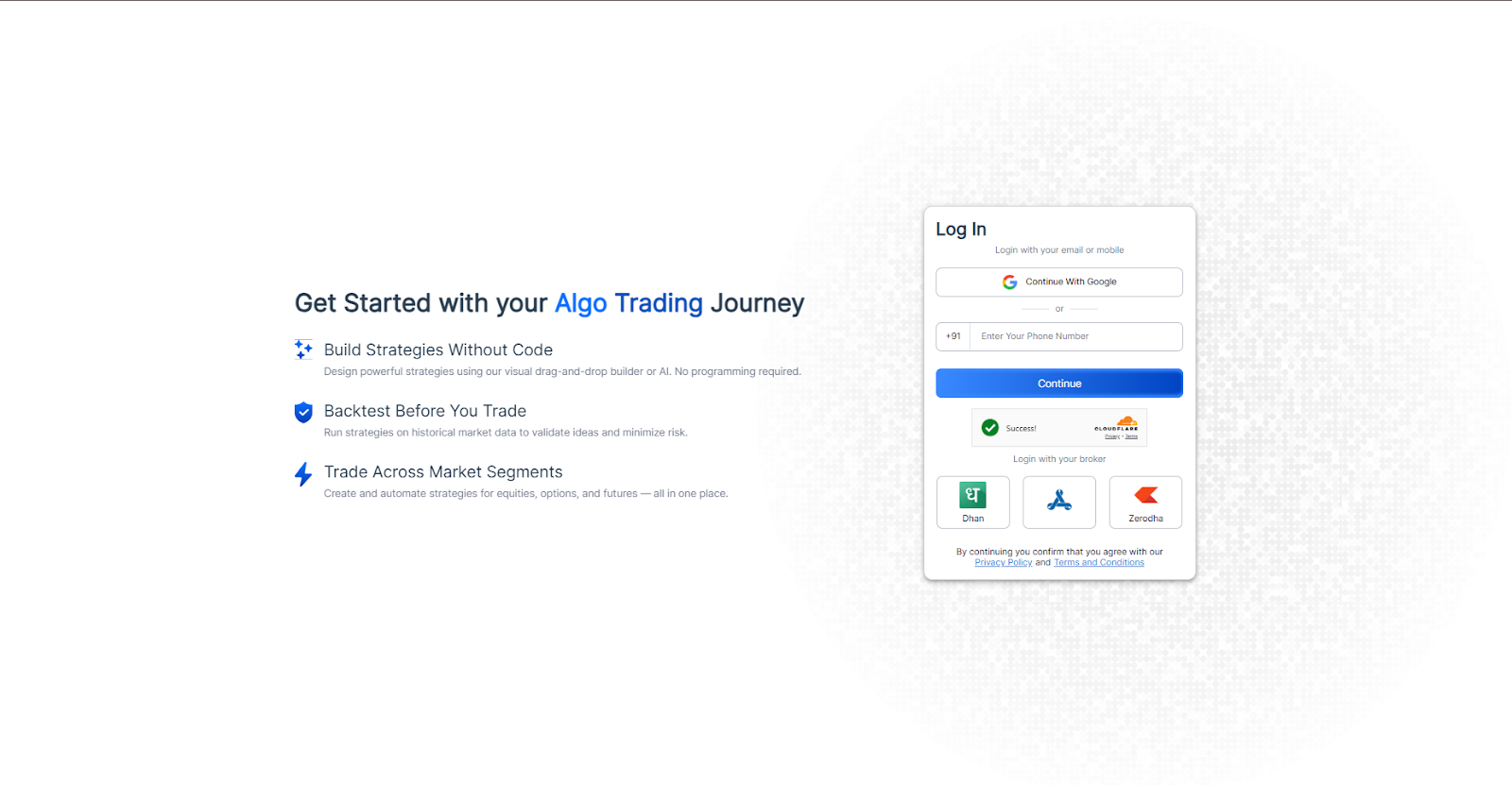
You must have an active uTradeAlgos. account. If you don’t already have one, you can easily create an account.

Zerodha Demat Account

You need to have an active Demat account on Zerodha. If you don’t have an account, create an account on Zerodha. Make sure to activate F&O on your account.
Connecting Zerodha with uTrade Algos

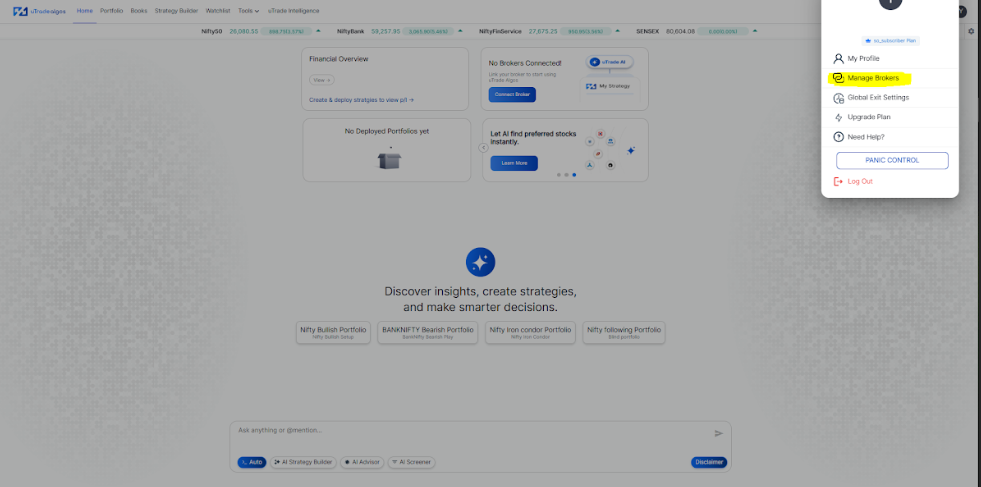
  • Click on the profile icon at the top right and select Broker Setup.

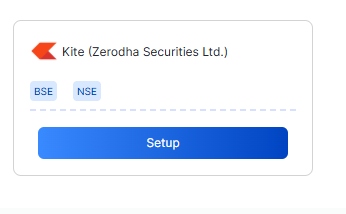
  • Click on the setup button of Zerodha.


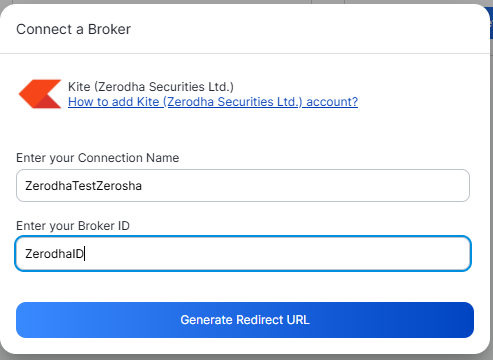
  • Enter the Connection Name and Broker ID and click on Generate Redirect URL. To find your Zerodha Broker ID, log in to your Zerodha account and click on your profile. Your Broker ID will be displayed there.


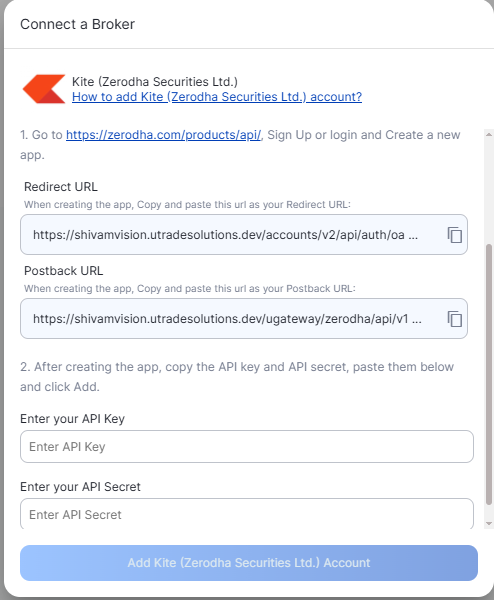
  • To generate your Zerodha API key and Secret Key, follow the steps below. Enter the Redirect URL and Postback URL on the Zerodha portal. Once the API key and API secret are generated, copy them along with your Zerodha account details and update them in utradeAlgos.


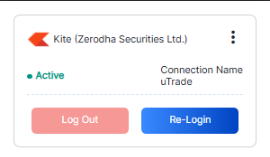
After clicking the “Add Zerodha Securities Ltd Account” button, you will be redirected to the Zerodha web login page, where you will be asked to enter your login credentials. Once the authentication is complete, you will be redirected back to your UtradeAlgos account. Your Zerodha account will now be successfully linked with UtradeAlgos and will appear under the Connected section in Manage Broker.   


Requirements for Algo Trading with Dhan

uTrade Algos Account


You must have an active uTradeAlgos account. If you don’t already have one, you can easily create it via uTradeAlgos.

Dhan Demat Account

You need to have an active Demat account in Dhan. If you don’t have an account, Open a demat account in Dhan. Make sure to activate F&O on your account.
Connecting Dhan with uTrade Algos

  • Click on the profile icon at the top right and select Broker Setup.
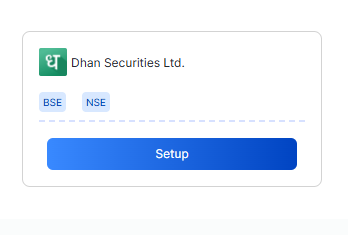
  • Click on the Dhan setup button.


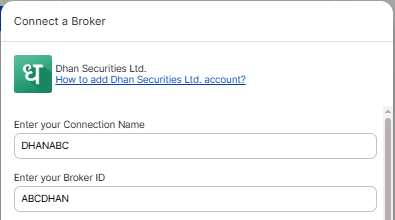
  • Enter the Connection Name and Broker ID and click on Generate Redirect URL To find your Dhan Broker ID, log in to your Dhan account and click on your profile. Your Broker ID will be displayed there.


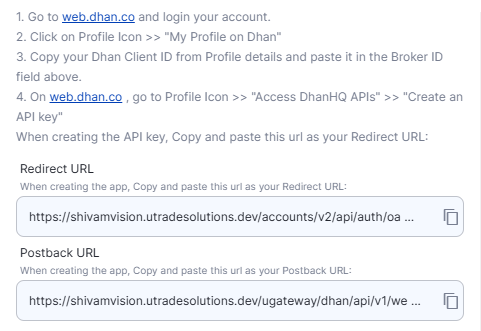
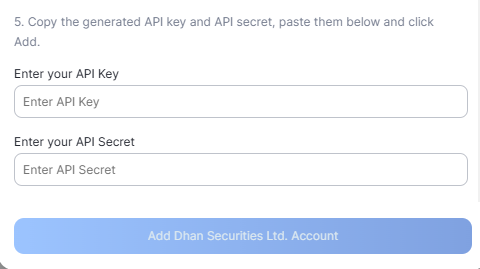
  • To generate your Dhan API key, follow the steps below. Enter the Redirect URL and Postback URL on the Dhan portal. Once the API key and API secret are generated, copy them along with your Dhan account details and update them in utradeAlgos.


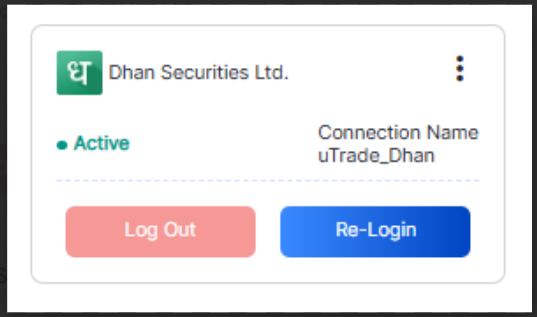
After clicking the “Add Dhan Securities Ltd Account” button, you will be redirected to the Dhan web login page, where you will be asked to enter your login credentials. Once the authentication is complete, you will be redirected back to your UtradeAlgos account. Your Dhan account will now be successfully linked with UtradeAlgos and will appear under the Connected section in Manage Broker.                                                           `     
Learn more about Dhan on their official website i.e. https://dhan.co/